RRB JE Junior Engineer · Computer Knowledge
Software & Operating Systems
System and application software and functions of operating systems like Windows and Linux.
Nine concepts at SSC depth. Windows runs the machine; File Explorer and Task Manager are the two UI tools Tier-2 Computer papers keep naming — folder operations and the Processes/Performance/Startup tabs — alongside system versus application software and how an OS boots.
- RRB JE Junior Engineer
- Medium level
- 9 concepts
- 45 practice questions
1System software versus application software
Software splits into two main categories. System software runs and maintains the machine — the operating system, device drivers and utilities. Application software does the user's tasks — word processors, browsers, games and other productivity programs.
The classification cue is: if a program helps you do a task, it is application software; if it helps run or protect the computer itself, it is system software. Antivirus is a utility, so it is system software even though users "open" it like an app.
Figure. Application software does the user's job. System software runs and maintains the machine underneath.
| Category | Job | Examples |
|---|---|---|
| System software | Runs / maintains the machine | OS, device drivers, utilities (antivirus, disk cleanup, compression) |
| Application software | Does user tasks | Word processors, browsers, games |
A lab installs an antivirus that scans disks and quarantines malware, and also installs a spreadsheet for the accounts team. How should those two programs be classed?
- Both application software, because users launch both from icons
- Antivirus = system software (utility); spreadsheet = application software
- Antivirus = application software; spreadsheet = system software because accounts are "system" work
Antivirus is a utility that protects the system — system software. A spreadsheet does a user productivity task — application software. Being launchable from an icon does not decide the class.
2What an operating system is
The operating system is system software that manages hardware, memory, processes, files and I/O. It also acts as the interface between the user and the hardware — you do not drive the disk controller directly; you ask the OS.
When a stem calls the OS a "manager" or "interface", it is pointing at this role, not at a single application like a browser.
Figure. The OS is the interface between user and hardware — you ask the OS; you do not drive the disk controller directly.
What the OS stands between
- User requestThe user (or an application) asks to run a program, open a file, or use a device.
- OS mediationThe OS allocates CPU time, memory and devices and enforces access rules.
- Hardware actionDrivers and the kernel talk to the hardware; results return through the OS to the user.
A clerk double-clicks a payroll file. Which statement places the operating system correctly in what happens next?
- The OS is only the desktop wallpaper theme and plays no role after the click
- The OS mediates — it helps load the program, manage memory and reach the disk on the clerk's behalf
- The OS is application software that edits the payroll figures itself
The OS is system software that manages resources and sits between user/application and hardware. It is not merely decoration, and it is not the payroll application.
3OS functions: process, memory, file, device, security
Core OS functions include process management, memory management, file management, device management, and providing security and a user interface. Process management includes CPU scheduling — deciding which process gets the CPU next among competing programs.
The OS is a resource manager: CPU, memory, files and devices are the four resource axes exams keep returning to, with security/UI listed beside them.
Figure. The OS is a resource manager: process, memory, file, device, plus security and the user interface.
| Function | What it manages | Exam cue |
|---|---|---|
| Process management | Running programs / CPU time | CPU scheduling — who runs next |
| Memory management | RAM allocation | Who gets how much memory |
| File management | Files and directories | Create, read, organise files |
| Device management | I/O devices via drivers | Printers, disks, keyboards |
| Security / UI | Access control and interface | Logins, permissions, GUI/CLI |
Two programs are ready to run and only one CPU core is free. Which OS function decides which process gets the CPU next?
- File management — because programs are stored as files
- Process management (CPU scheduling)
- Device management — because the CPU is a "device"
Allocating the CPU among competing processes is process management / CPU scheduling. File management organises stored files; device management covers I/O peripherals, not scheduling ready processes onto the CPU.
4Windows File Explorer: find, move and organise files
File Explorer (Windows Explorer) is the Windows tool for browsing drives and folders. Win+E opens it. Everyday exam actions are move, copy, rename and delete — not running diagnostics or changing system settings.
Quick Access lists frequent and recent folders. The search bar finds by keywords; wildcards such as *.pdf refine a partial name. Sorting groups files by name, date or type.
Figure. File Explorer browses drives and folders. Everyday exam actions are move, copy, rename, delete, Quick Access and wildcard search — not system tuning.
| Feature | What it does |
|---|---|
| Win + E | Opens File Explorer |
| Quick Access | Recent and frequently used folders |
| Search bar | Locate files/folders by keywords |
| Wildcards (e.g. *.docx) | Match partial names / extensions |
| Sort / group | Order by name, date, type, size |
| Move / copy / delete | Core file operations in a folder view |
A clerk must relocate a report into another folder, keep a second copy on a USB drive, and remove the obsolete draft — all from the folder window. Which Windows tool is built for those file operations?
- Task Manager Performance tab
- File Explorer
- Device Manager
Move, copy and delete are File Explorer operations. Task Manager watches processes; Device Manager manages hardware.
5Common OS examples and open source
Common desktop OS examples include Windows and macOS (GUI-based) and Linux/Unix. On phones, Android and iOS are the usual mobile OS names. Linux is free and open-source; Ubuntu and Fedora are Linux distributions that inherit that open-source character. Android is also open-source in the family of examples the notes list.
Windows and macOS are proprietary. The exam cut is open-source versus proprietary, not which logo looks familiar.
Figure. Linux and Android are the open-source cues in the bank; Windows and macOS are proprietary desktop names; iOS is the usual Apple mobile OS.
| OS / family | Typical arena | Licence cue in notes |
|---|---|---|
| Windows | Desktop / laptop | Proprietary |
| macOS | Apple desktops / laptops | Proprietary |
| Linux / Unix (Ubuntu, Fedora) | Servers and desktops | Open-source (Linux free/open) |
| Android | Mobile | Open-source (as listed) |
| iOS | Apple mobile | Mobile OS example |
A district office wants a free, open-source desktop OS that volunteers can redistribute and study. Which choice matches the notes' open-source list, and which pair is proprietary instead?
- Windows — open-source; Linux and macOS — proprietary
- A Linux distribution such as Ubuntu — open-source; Windows and macOS — proprietary
- macOS — open-source; Android and Windows — proprietary
Linux/Ubuntu (and Fedora, Android in the notes) are open-source; Windows and macOS are proprietary. Swapping those labels is the usual trap.
6GUI versus CLI
A Graphical User Interface (GUI) presents icons, windows and menus for pointing and clicking. A Command Line Interface (CLI) takes typed commands. Windows and macOS are commonly cited as GUI-based; many Unix/Linux tasks still use a CLI even when a desktop GUI is also available.
The cut is how the user issues instructions — graphics versus typed commands — not whether the OS can multitask.
Figure. GUI uses icons, windows and menus. CLI takes typed commands. Many Unix and Linux tasks still use a CLI even when a desktop GUI exists.
| Interface | Expansion | How you interact |
|---|---|---|
| GUI | Graphical User Interface | Icons, windows, menus, pointer |
| CLI | Command Line Interface | Typed commands |
A trainee is told to open a terminal and type commands to list files, instead of double-clicking folders. Which interface is in use?
- GUI — because a terminal window is still a window
- CLI — interaction is by typed commands
- Neither — only the kernel counts as an interface
Typed commands name the CLI. A terminal may appear inside a windowed desktop, but the interaction mode being tested is command-line, not icon-driven GUI.
7Compiler versus interpreter
A compiler translates the whole program into machine code before it runs. An interpreter translates and executes line by line. The usual exam trade-off is: compiled programs tend to run fast once built, but the build step takes time; interpreted programs are easier to debug line by line but pay translation cost during execution.
Both are language translators; the cut is whole-program versus line-by-line.
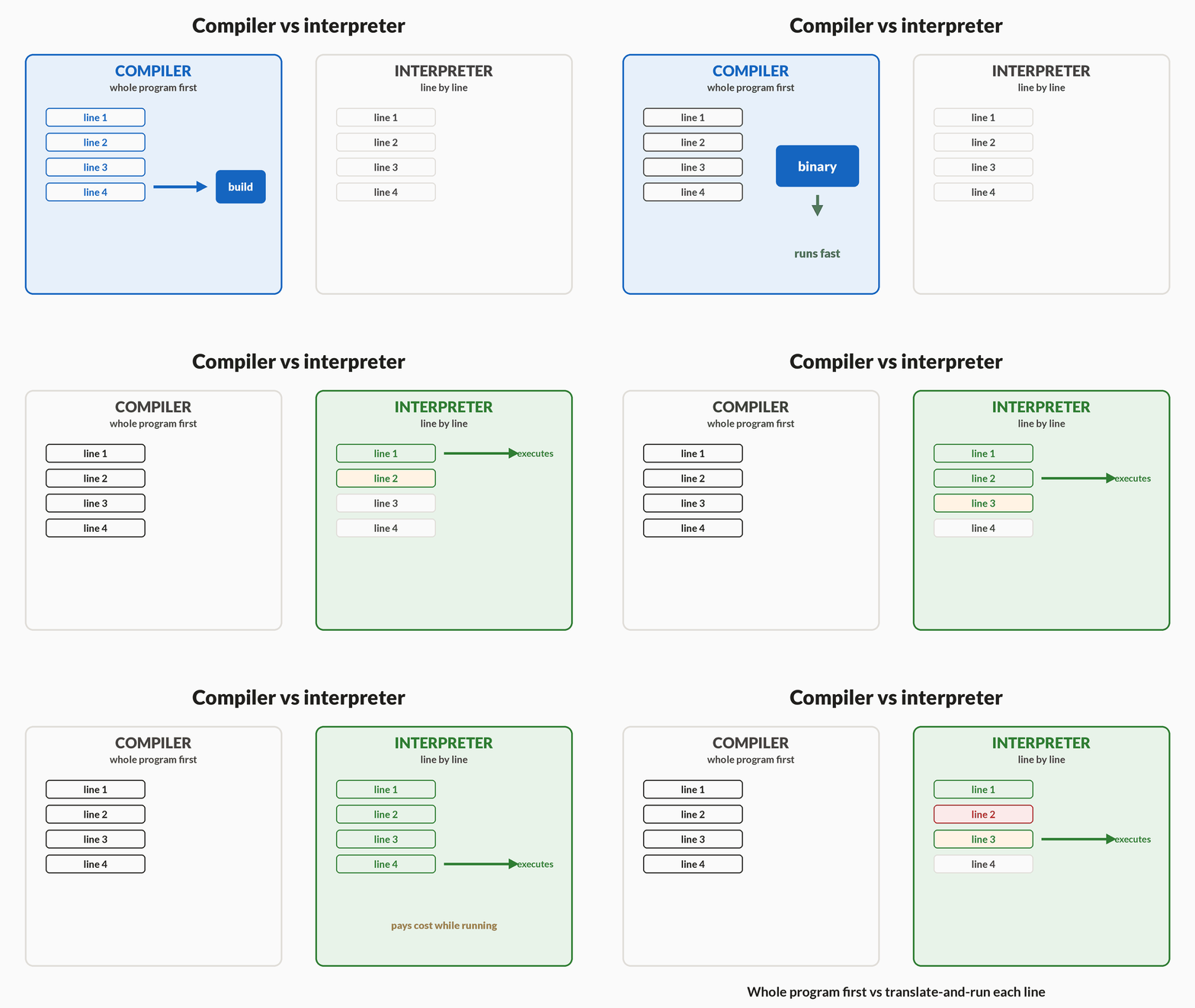
| Translator | How it works | Typical exam trade-off |
|---|---|---|
| Compiler | Whole program at once | Faster execution after build; slower to build |
| Interpreter | Line by line | Easier to debug; pays cost while running |
A student changes one line of a script and re-runs it immediately; the tool executes statements one after another without producing a full separate machine-code build first. Which translator model fits, and what is the usual trade-off named in the notes?
- Compiler — whole program first; harder to debug
- Interpreter — line by line; generally easier to debug, cost paid while running
- Neither — only an OS kernel can translate source code
Line-by-line execution without a full prior build matches an interpreter. Compilers translate the whole program first; the kernel is not the source-to-machine translator in this contrast.
8Booting and the kernel
Booting is loading the operating system into RAM at startup. A cold boot is powering the machine on from off; a warm boot is a restart without a full power-off cycle in the everyday exam sense.
The kernel is the core of the OS that directly manages hardware and resources. When a stem says "core of the OS", it is aiming at the kernel, not at a word processor or a browser.
Figure. Booting loads the OS into RAM. Cold boot is power-on from off; warm boot is a restart. The kernel is the core that manages hardware.
| Term | Meaning |
|---|---|
| Booting | Loading the OS into RAM at startup |
| Cold boot | Power on from off |
| Warm boot | Restart |
| Kernel | Core of the OS; manages hardware and resources directly |
After a software update the machine restarts without the user cutting wall power. Meanwhile a textbook sentence says the OS core that talks straight to hardware is loaded into memory at startup. Which pair of terms fits?
- Cold boot and application software
- Warm boot (restart) and kernel (OS core managing hardware)
- Warm boot and compiler — the compiler is the OS core
Restart without powering off from the wall is the warm-boot cue; the OS core that manages hardware is the kernel. Cold boot is power-on from off; a compiler is a translator, not the OS kernel.
9Task Manager tabs: processes, performance and startup
Task Manager (Ctrl+Shift+Esc, or Ctrl+Alt+Del → Task Manager) shows what the PC is doing. Exams match tab names to jobs rather than asking you to tune a machine.
Processes lists apps and background tasks. Performance graphs CPU, memory, disk and network. Startup controls programs that launch at sign-in. App History summarises resource use for Store apps.
Figure. Exams match Task Manager tab names to jobs: Processes, Performance, Startup and App History — not tuning advice.
| Tab | Job |
|---|---|
| Processes | Active applications and background processes |
| Performance | Overall CPU, memory, disk and network usage |
| Startup | Programs that run when Windows starts |
| App History | Resource usage for Windows Store apps |
After login, three unused apps reopen every time and slow the desktop. Which Task Manager tab lets you stop them launching at startup?
- Performance
- Startup
- App History
Startup manages programs that run at sign-in. Performance only graphs usage; App History reports Store-app use.
Notes
- Software types: System software runs the machine (OS, device drivers, utilities); application software does user tasks (Word, browsers, games).
- The Operating System is system software that manages hardware, memory, processes, files and I/O and acts as an interface between user and hardware.
- OS functions include process management, memory management, file management, device management and providing security/user interface.
- Common OS examples: Windows and macOS (GUI-based), Linux/Unix (open-source), Android and iOS (mobile OS); Linux is free and open-source.
- Utility programs (antivirus, disk cleanup, compression) are system software; a compiler/interpreter translates source code to machine code.
Formulas
- System software + Application software = the two main software categories.
- GUI = Graphical User Interface (icons/windows); CLI = Command Line Interface (typed commands).
- Compiler translates the whole program at once; Interpreter translates line by line.
- Booting = loading the OS into RAM at startup; cold boot = power on, warm boot = restart.
- Kernel = core of the OS that directly manages hardware and resources.
Exam traps & shortcuts
- If a program helps you 'do a task' it is application software; if it helps 'run the computer' it is system software.
- Linux, Ubuntu, Fedora and Android are open-source; Windows and macOS are proprietary.
- Compiler = fast execution but slower to build; Interpreter = executes line-by-line and easier to debug.
Reference tables
Category split, OS functions, licence cues, interfaces, translators and boot terms in one revision grid.
| Topic | Hold this |
|---|---|
| Software split | System runs the machine; application does user tasks |
| Utilities | Antivirus, disk cleanup, compression → system software |
| OS job | Manages hardware/memory/processes/files/I/O; user↔hardware interface |
| Open-source cue | Linux/Ubuntu/Fedora/Android open; Windows/macOS proprietary |
| GUI / CLI | GUI = icons/windows; CLI = typed commands |
| Compiler / interpreter | Whole program vs line-by-line |
| Boot / kernel | Boot = OS into RAM; cold = power on; warm = restart; kernel = OS core |
Recap
If you keep only pegs, keep these.
- Two categories
- System software + application software
- Antivirus
- Utility → system software (not application)
- OS role
- Manages resources; interface between user and hardware
- CPU scheduling
- Process management decides which process gets the CPU next
- Open source
- Linux, Ubuntu, Fedora, Android — open; Windows, macOS — proprietary
- GUI / CLI
- GUI = Graphical User Interface; CLI = Command Line Interface
- Compiler
- Whole program at once; faster run, slower build
- Interpreter
- Line by line; easier to debug
- Booting
- Loading OS into RAM; cold = power on; warm = restart
- Kernel
- Core of the OS that manages hardware and resources
- File Explorer
- Win+E opens it. Move/copy/delete, Quick Access, search and wildcards.
- Task Manager
- Processes = running apps; Performance = usage graphs; Startup = launch-at-login list.
Practise Software & Operating Systems
Reading is free and needs no account. Practice, mocks and progress live in the app.
- 45 exam-style questions on this topic, with explanations
- A 5-question practice set that ends the chapter
- Timed mocks scored with the real marking scheme
- Readiness tracked per topic, kept on your device